Yes, you can! That said, for reasons of rights and cost, Genius Loci doesn’t host audio and video files directly, the way dedicated platforms such as YouTube or Vimeo do.
This means you’ll need to publish your videos somewhere first, then embed them into Genius Loci. Here’s how to go about it:

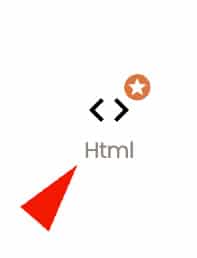
The «Add HTML» option appears like this in the editor.
This feature has to be switched on before it shows up in your profile. Note that it isn’t enabled by default.
We only activate it on request, for users with a basic level of technical know-how.
If you’d like to have this option, feel free to write to us at hello@geniusloci.com and we’ll enable the feature on your profile.
Any kind of « HTML embed » content can be added to Genius Loci.
For example:
- A YouTube or Vimeo video
- A Spotify or Soundcloud audio podcast
- Google Maps
- An immersive Matterport 3D viewer
- and more
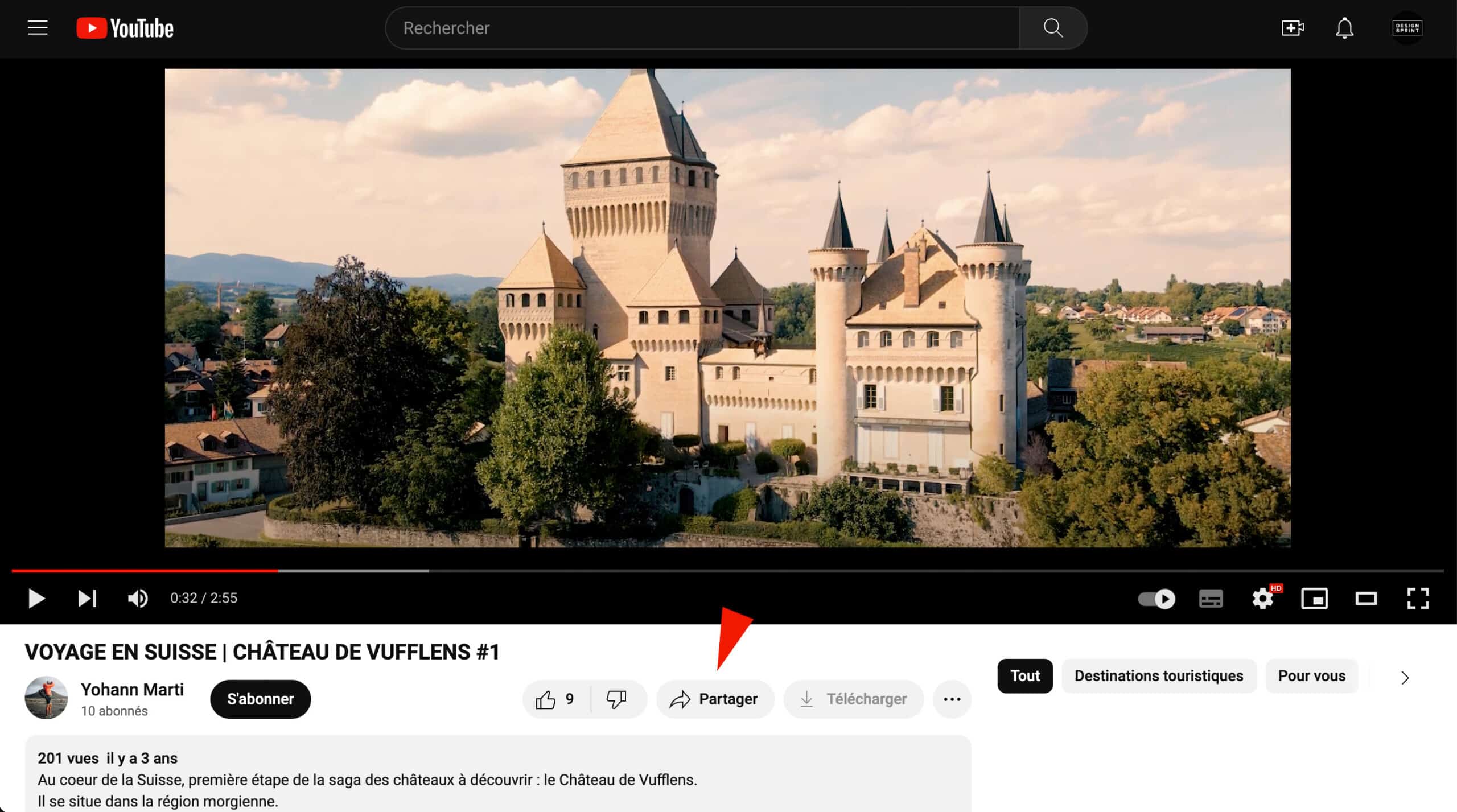
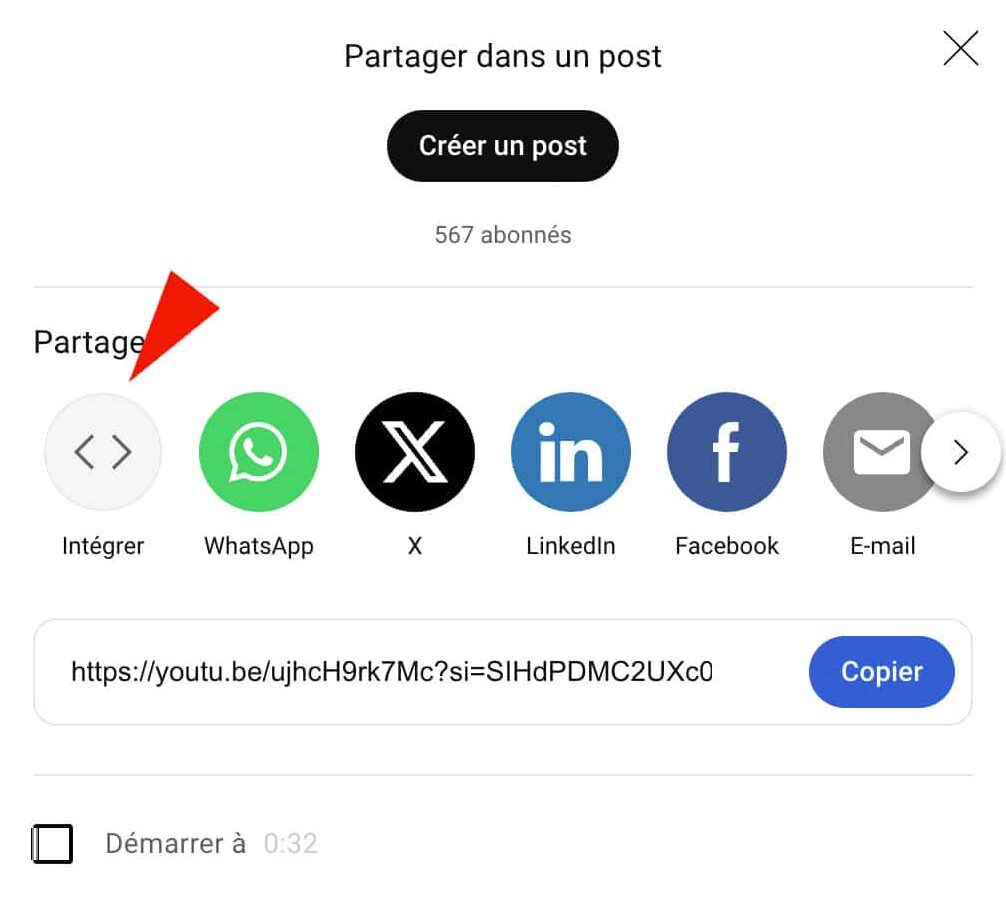
Let’s walk through embedding a YouTube video together:
- Click the « Share » button found beneath the video you’ve chosen
- Then click the « Embed » button. This is where you’ll find the all-important HTML embed code to paste into Genius Loci.
Depending on the platform, it can be more or less easy to track down. Very often, the simplest route is to type «Spotify code embed» into Google and land on a page like this one, which explains how it’s done.
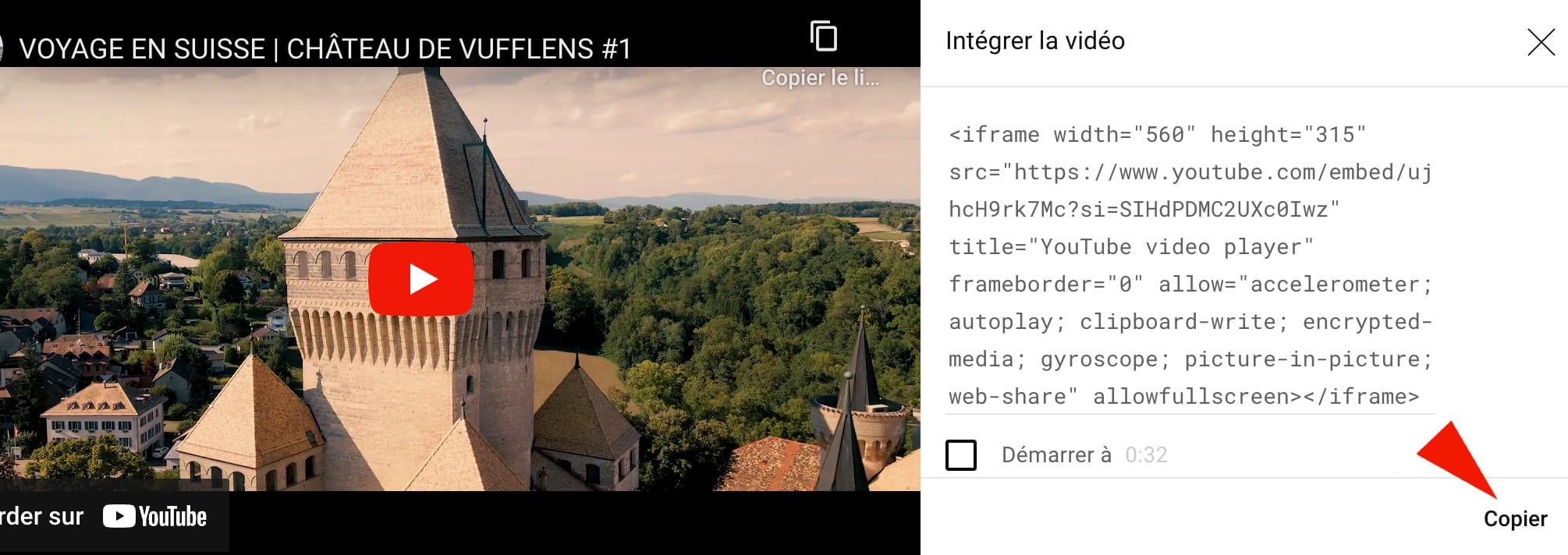
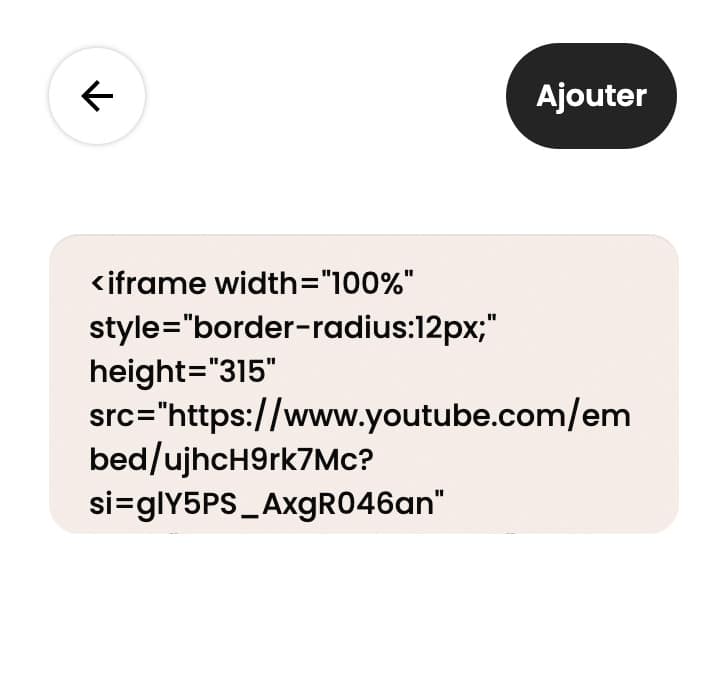
3. Copy the entire embed code, then head back to Genius Loci and open the « HTML » tool.
4. Paste the code and click « Add »
Your YouTube video now appears in Genius Loci!
It behaves just like any other content block: you can move it or delete it, exactly as you would a simple text block.
In short, thanks to the « Add HTML » feature, any video or multimedia content already hosted on YouTube, Vimeo or other platforms can be added to Genius Loci with ease.